See your upcoming work shifts alongside your personal events — no need to keep checking the Timble app. This guide walks you through adding your Timble shift calendar to Apple Calendar on an iPhone or iPad. Once set up, your rostered shifts appear automatically and update when your roster changes.
What you'll need
- An iPhone or iPad with Apple Calendar
- The Timble mobile app installed and logged in
Set up calendar sync
- Open the Timble app on your iPhone or iPad
- Tap the Account tab (bottom right)
- Tap Calendar Sync
- Tap Sync with Apple Calendar
- Your phone will show a "Subscribe to Calendar" prompt
- Tap Subscribe to confirm
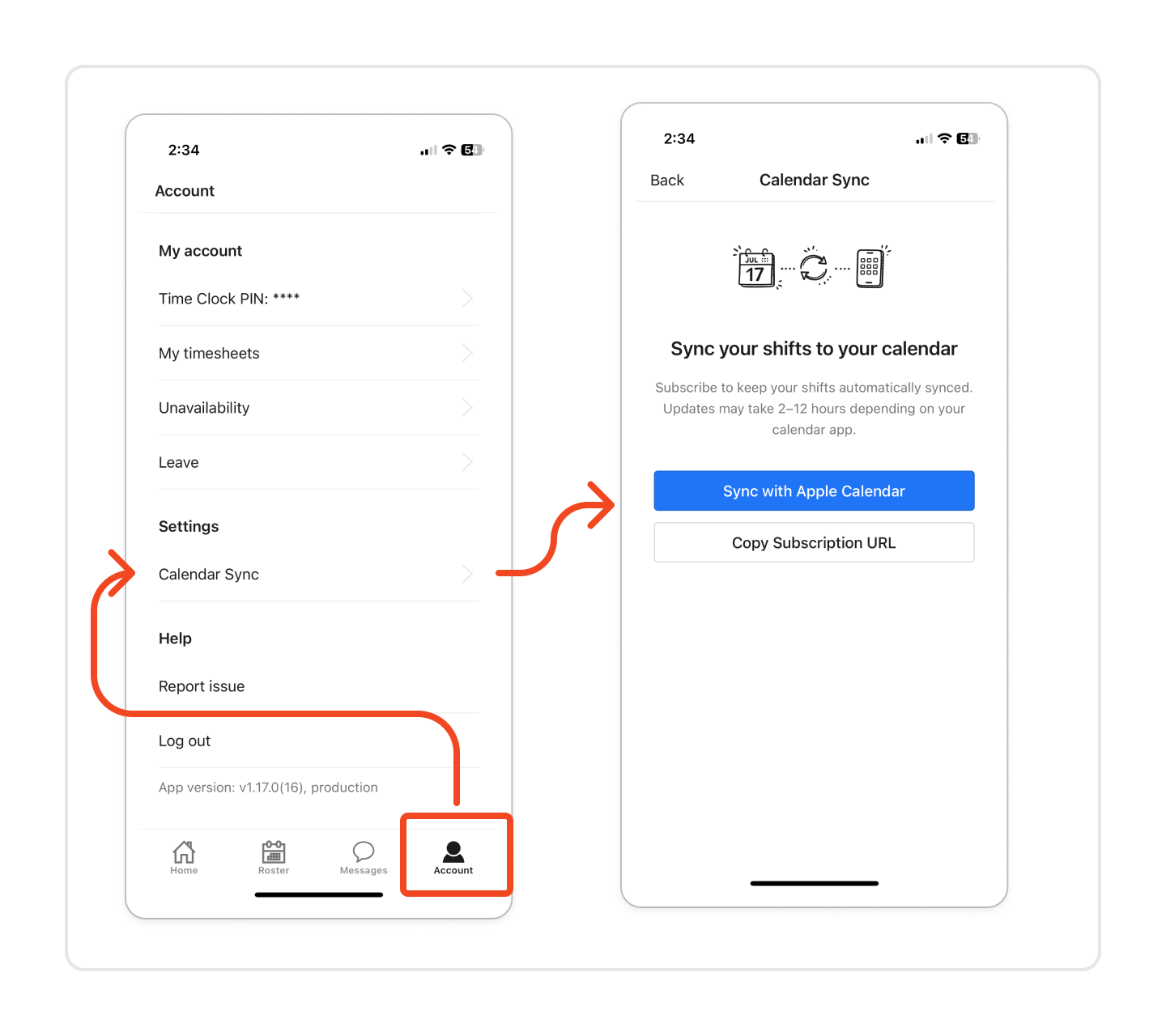
That's it — your Timble shifts will now appear in Apple Calendar.
Tip: It may take a few minutes for Apple Calendar to fetch your shifts after subscribing.
What you'll see in your calendar
Each rostered shift appears as a calendar event showing:
- Shift date and time (start and end)
- Location and department
- Position/role (if assigned)
Shifts are shown from 90 days in the past to 180 days in the future.
Frequently asked questions
How often does my calendar update
- Apple Calendar periodically checks for changes in the background. It may take some time for roster updates to appear. To force an immediate refresh, open the Calendar app, tap Calendars at the bottom, then pull down on the list.
Will I see changes if my manager updates the roster
- Yes. Once your manager publishes roster changes, the updated shifts will appear in your calendar the next time it refreshes.
Can I edit shifts from my calendar app
- No. Shifts are read-only — they sync one way from Timble to your calendar. To swap or manage shifts, use the Timble app.
I don't see the Calendar Sync option in my account
- Make sure you're using the latest version of the Timble app. If you still don't see it, contact your manager or admin.
Was this article helpful?
That’s Great!
Thank you for your feedback
Sorry! We couldn't be helpful
Thank you for your feedback
Feedback sent
We appreciate your effort and will try to fix the article