This guide walks you through adding your Timble shift calendar to Google Calendar on an Android device. Once set up, your rostered shifts will appear alongside your personal events and update automatically.
What you'll need
- A Google account linked to your Android phone
- The Timble mobile app installed and logged in
- Access to a web browser (Chrome works best)
Step 1: Get your calendar link
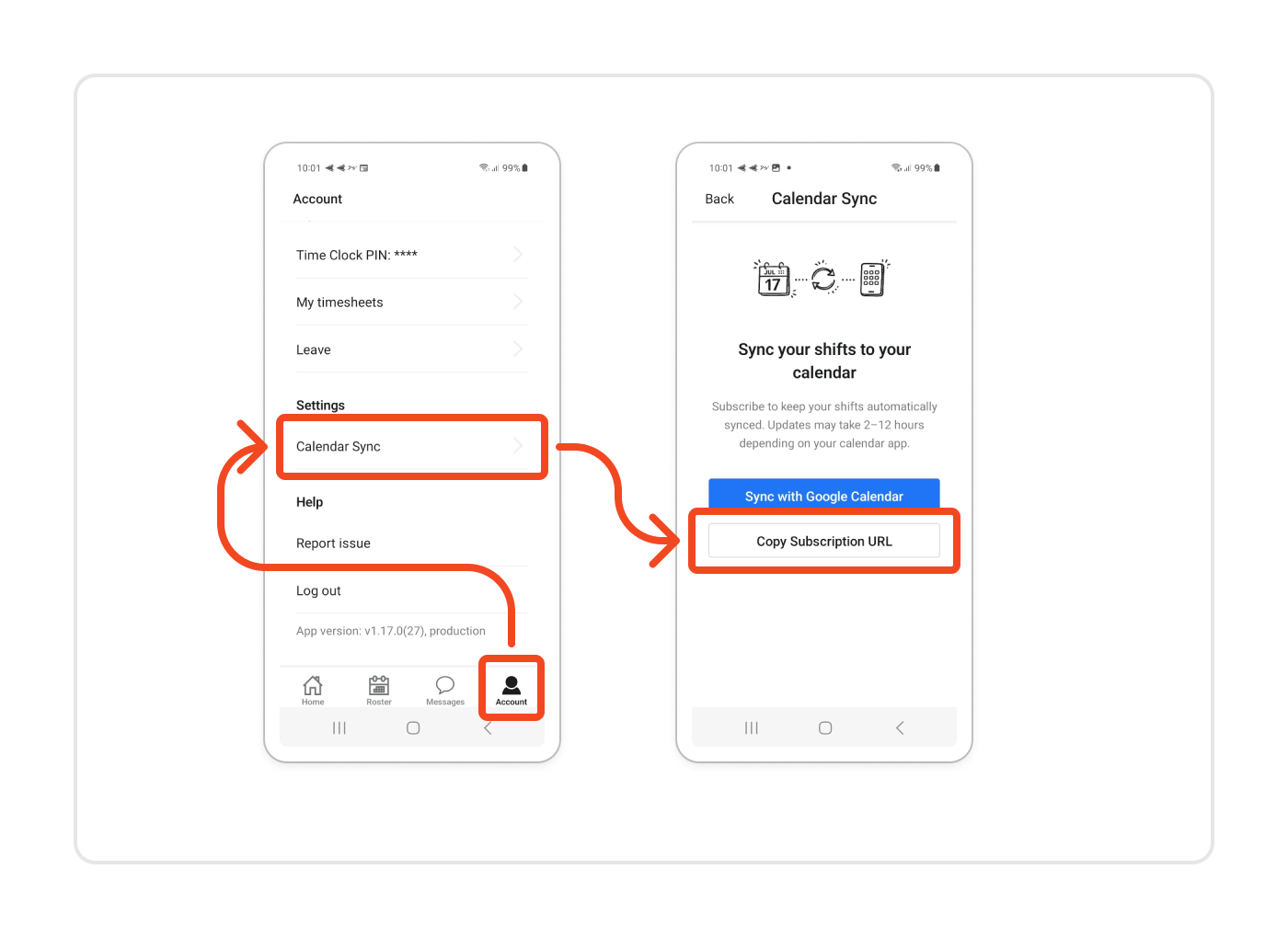
- Open the Timble app on your Android phone
- Tap the Account tab (bottom right)
- Tap Calendar Sync
- Tap Copy Subscription URL to copy your personal calendar link
Your link looks like this:
https://app.timble.co.nz/api/calendar/shifts/xxxx/xxxx-xxxx-xxxx.ics
Note: This link is unique to you. Anyone with this link can view your shift schedule — it's fine to share with family, but avoid posting it publicly.
Step 2: Open Google Calendar on the web
Google Calendar's mobile app doesn't support adding calendar subscriptions directly. You'll need to use the web version:
- Open Chrome on your phone (or any browser)
- Go to https://calendar.google.com
- If prompted, sign in with the same Google account as your Android phone
Tip: If the mobile site loads, tap the three-dot menu in Chrome and select "Desktop site" to get the full version.
Step 3: Add the calendar subscription
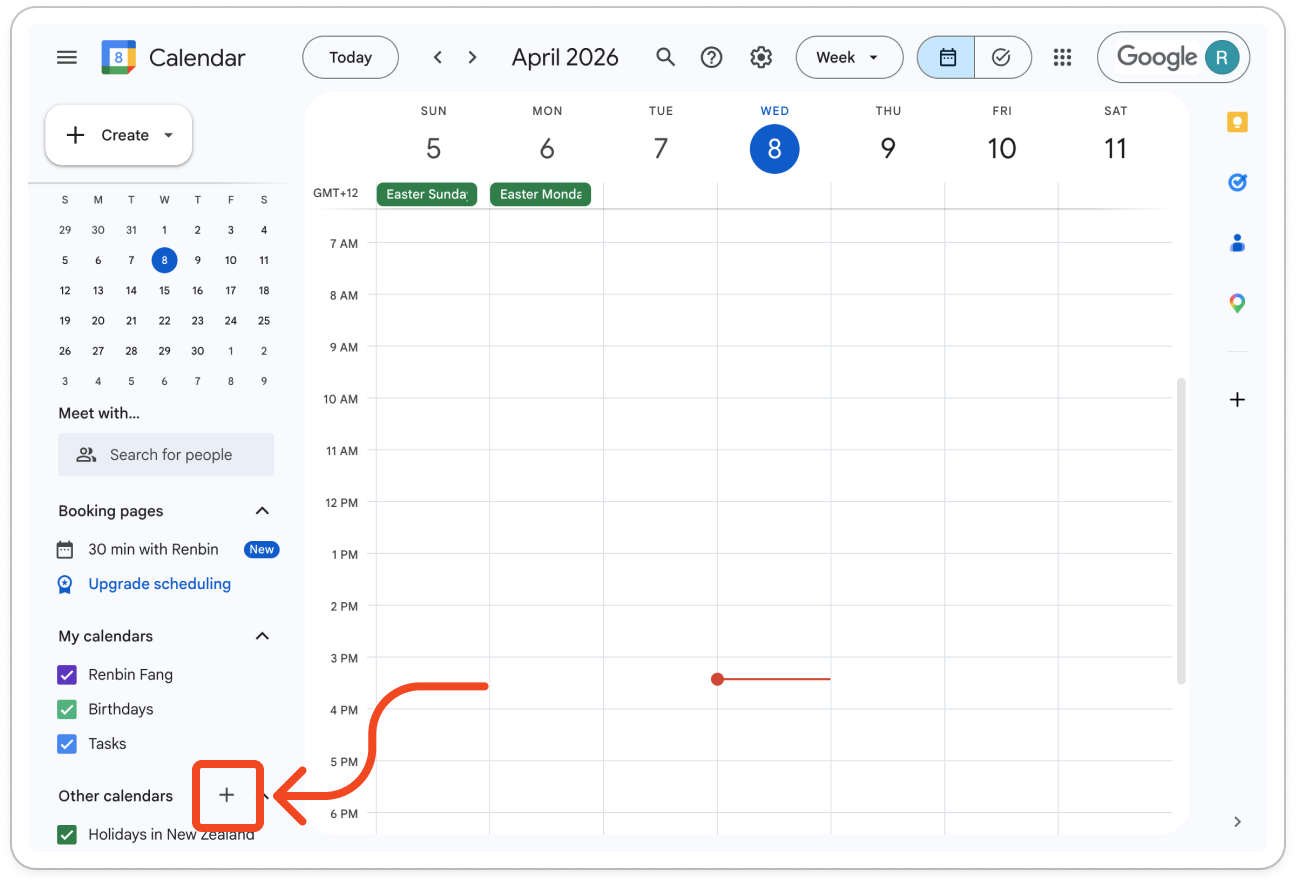
- On the left sidebar, find "Other calendars"
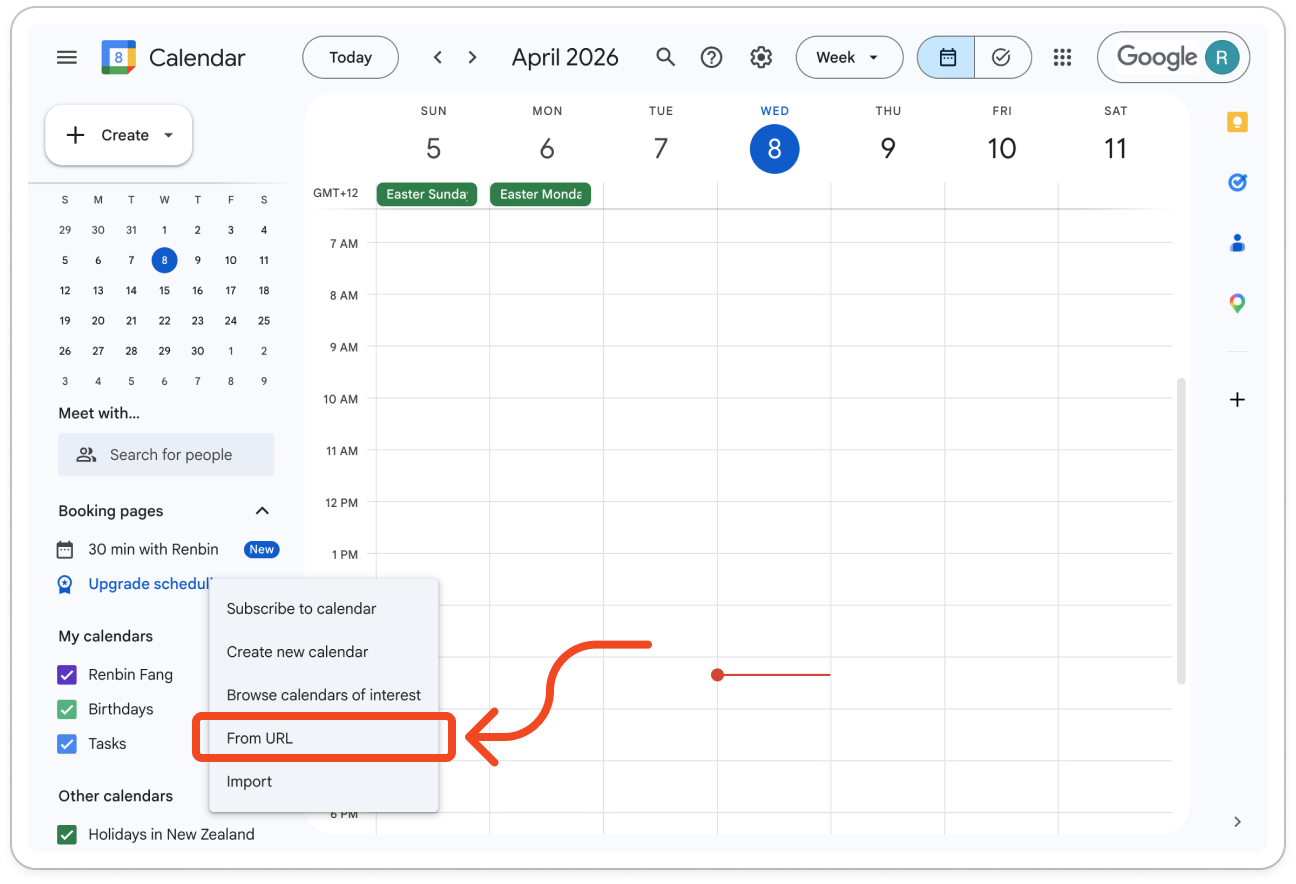
- Click the + icon next to it
- Select "From URL"
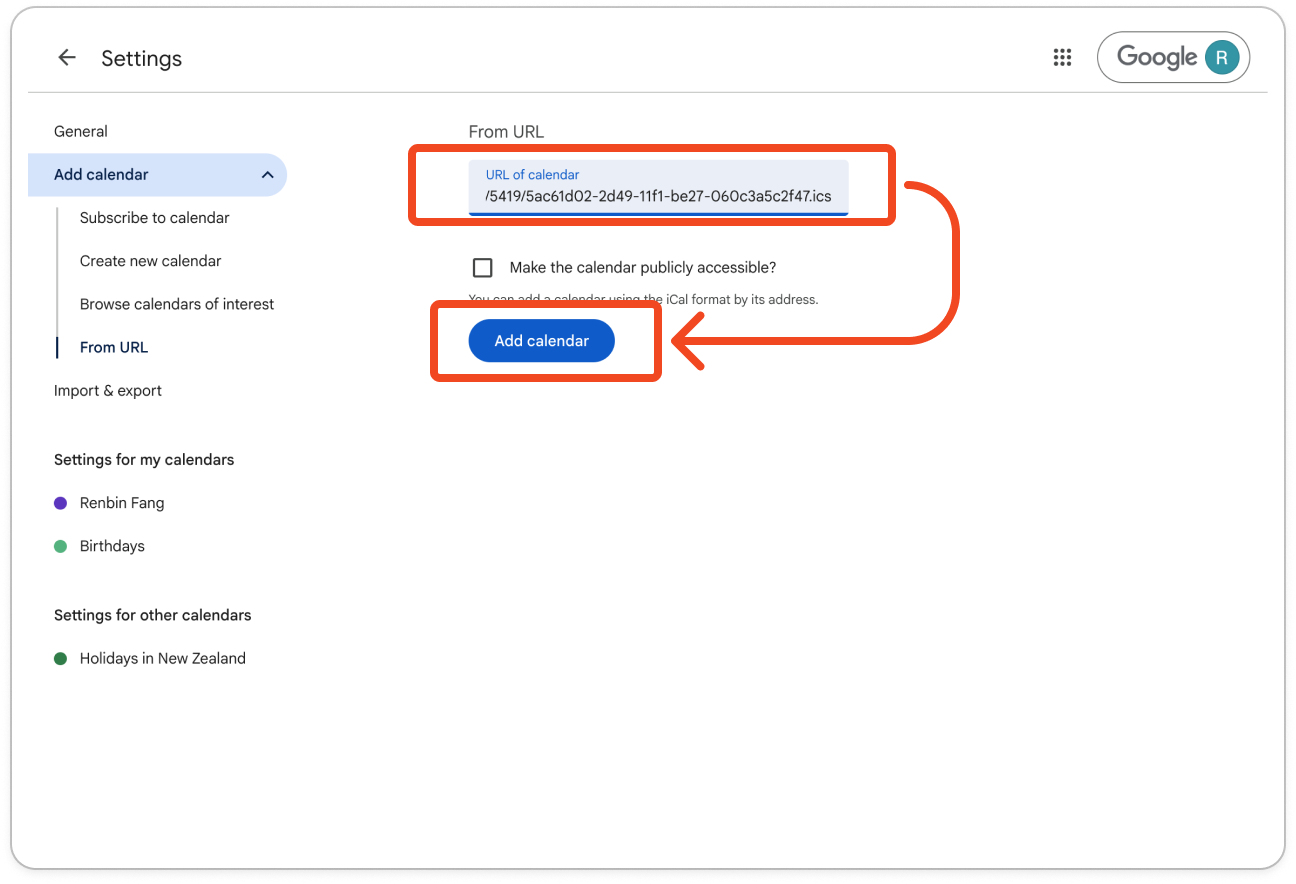
- Paste your Timble calendar link into the "URL of calendar" field
- Click "Add calendar"
Step 4: Verify it's working
- Go back to the main calendar view
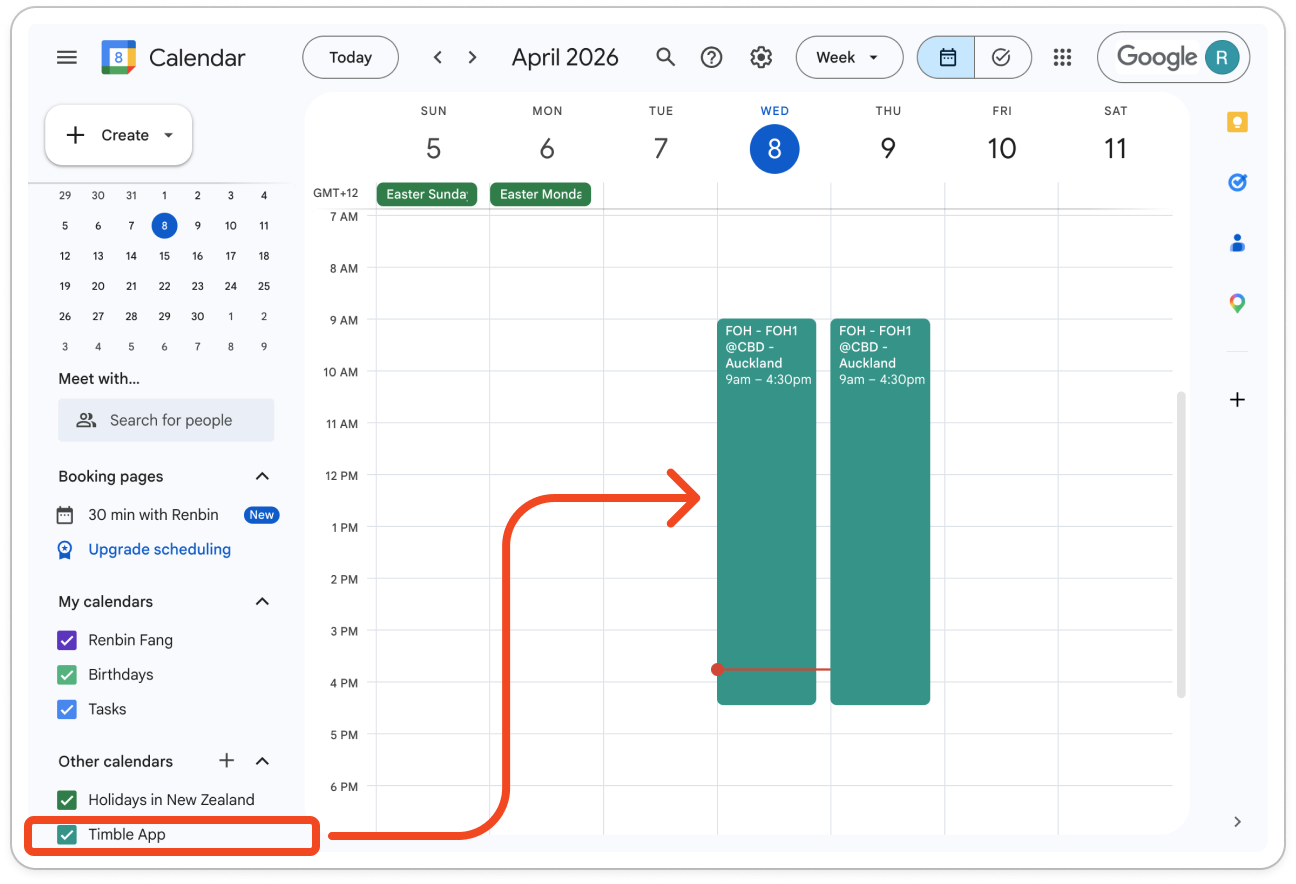
- Look for a new calendar called "Timble App" in the left sidebar under "Other calendars"
- Your upcoming shifts should now appear on the calendar
Open the Google Calendar app on your phone — the shifts should sync there automatically within a few minutes.
Troubleshooting
I don't see my shifts after adding the calendar
- Google Calendar can take up to 12-24 hours to fetch events from a new subscription
- Make sure the new calendar is toggled on (checked) in the sidebar
- Try closing and reopening the Google Calendar app
The "From URL" option doesn't appear
- Make sure you're on the desktop version of Google Calendar (not the mobile site)
- In Chrome, tap the three-dot menu > "Desktop site"
My shifts are showing the wrong times
- Check that your Google Calendar timezone matches your work location
- Go to Google Calendar Settings > General > Time zone and verify it's correct
I want to stop syncing
- Open Google Calendar on the web
- Click the gear icon > Settings
- In the left sidebar, find your Timble calendar under "Other calendars"
- Scroll down and click "Unsubscribe" or "Remove calendar"
Was this article helpful?
That’s Great!
Thank you for your feedback
Sorry! We couldn't be helpful
Thank you for your feedback
Feedback sent
We appreciate your effort and will try to fix the article